Offline notebook · Windows, Linux, macOS from source

A notebook that files itself.

Write a thought and a local AI files it, tags it and links it to what you already wrote. Ask a question and the answer cites the notes it came from. All of it runs on your computer.

  • Free and open source
  • No account
  • No telemetry
  • Works with no AI model
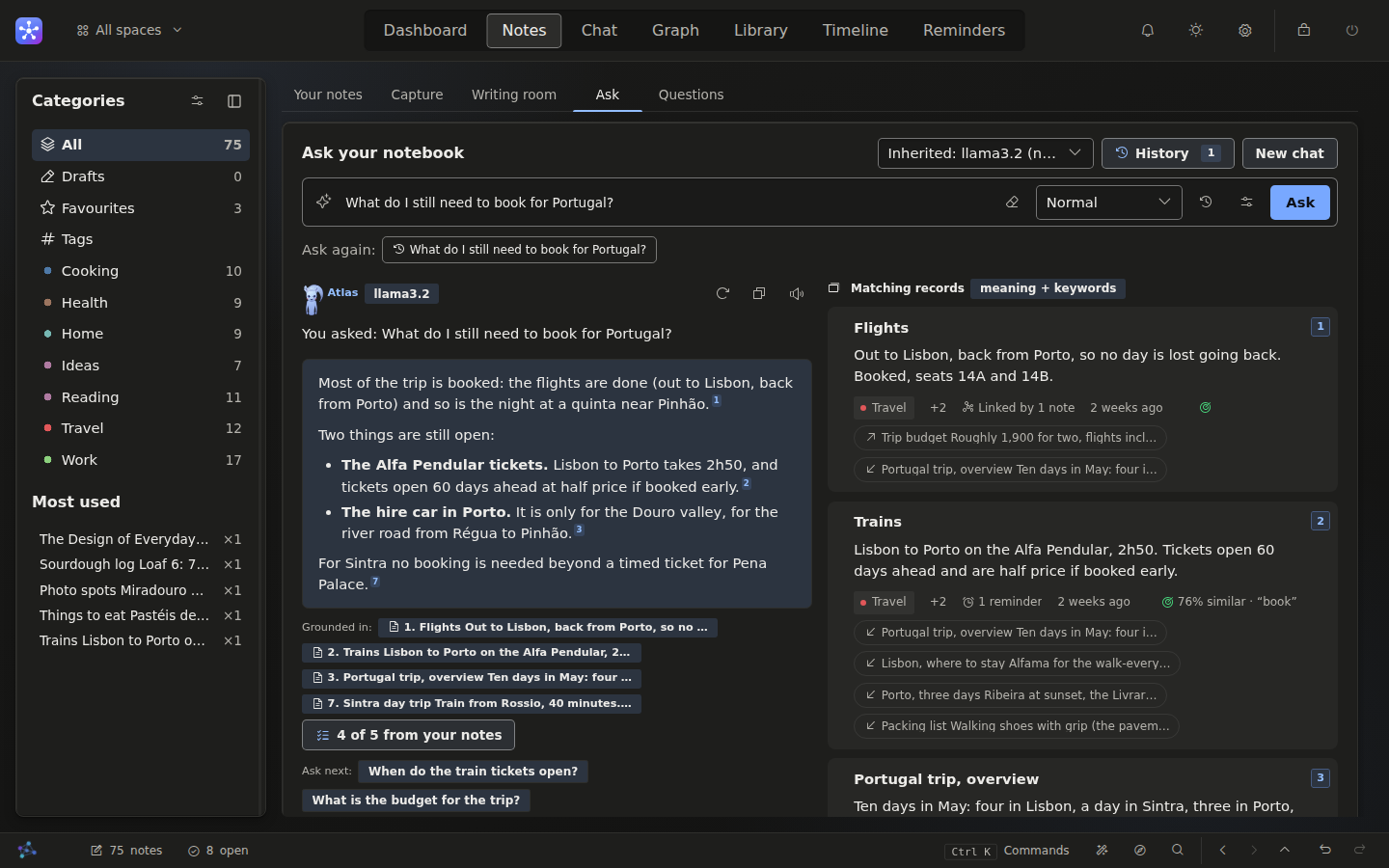
MemoryMap AI in the dark theme, Notes, Ask: the question what do I still need to book for Portugal, answered with the train tickets and the hire car, a numbered citation after each sentence, and the matching notes listed on the right.
What the screenshot shows:
  1. Ask in plain words. Your notes, not the open web.
  2. Every sentence cites a note. Check any claim in one glance.
  3. The notes it used sit beside it. Open one to read the rest.

Three steps, and you only do two of them.

Most notebooks leave the filing to you. MemoryMap reads each note as you save it and works out where it belongs.

  1. Capture

    Type, paste, draw, dictate or import. Alt+N opens a quick note over any tab, and voice is transcribed on your machine.

    Quick noteCtrl+Enter to save

    Book the Alfa Pendular tickets before the price goes up #portugal

  2. It files itself

    A local model picks the category by meaning, suggests tags and links the notes it relates to, and says how sure it is. Keep each with one press.

    Category
    Travel
    Tags
    #trains#portugal
    Linked to
    Portugal trip, overview
    Certainty
    Fairly sure
  3. Ask, with sources

    Ask in plain words. Each sentence of the answer cites the note behind it, so nothing has to be taken on trust.

    What do I still need to book for Portugal?

    The Alfa Pendular tickets1 and the hire car in Porto2.

    • 1Trains
    • 2Hire car for the Douro valley

Everything else a thinking notebook needs.

A long-form editor, boards and mind maps, a graph, a timeline and an assistant that can act for you. All of it offline.

Notes

Write in fragments, find it organised.

A loose thought lands next to its neighbours: filed into a category, tagged, and linked to what it relates to.

  • Rename, merge, split and move categories, each step undoable
  • Pins, threads, attachments, revision history and a recycle bin
  • Search that understands tags, exact phrases and exclusions
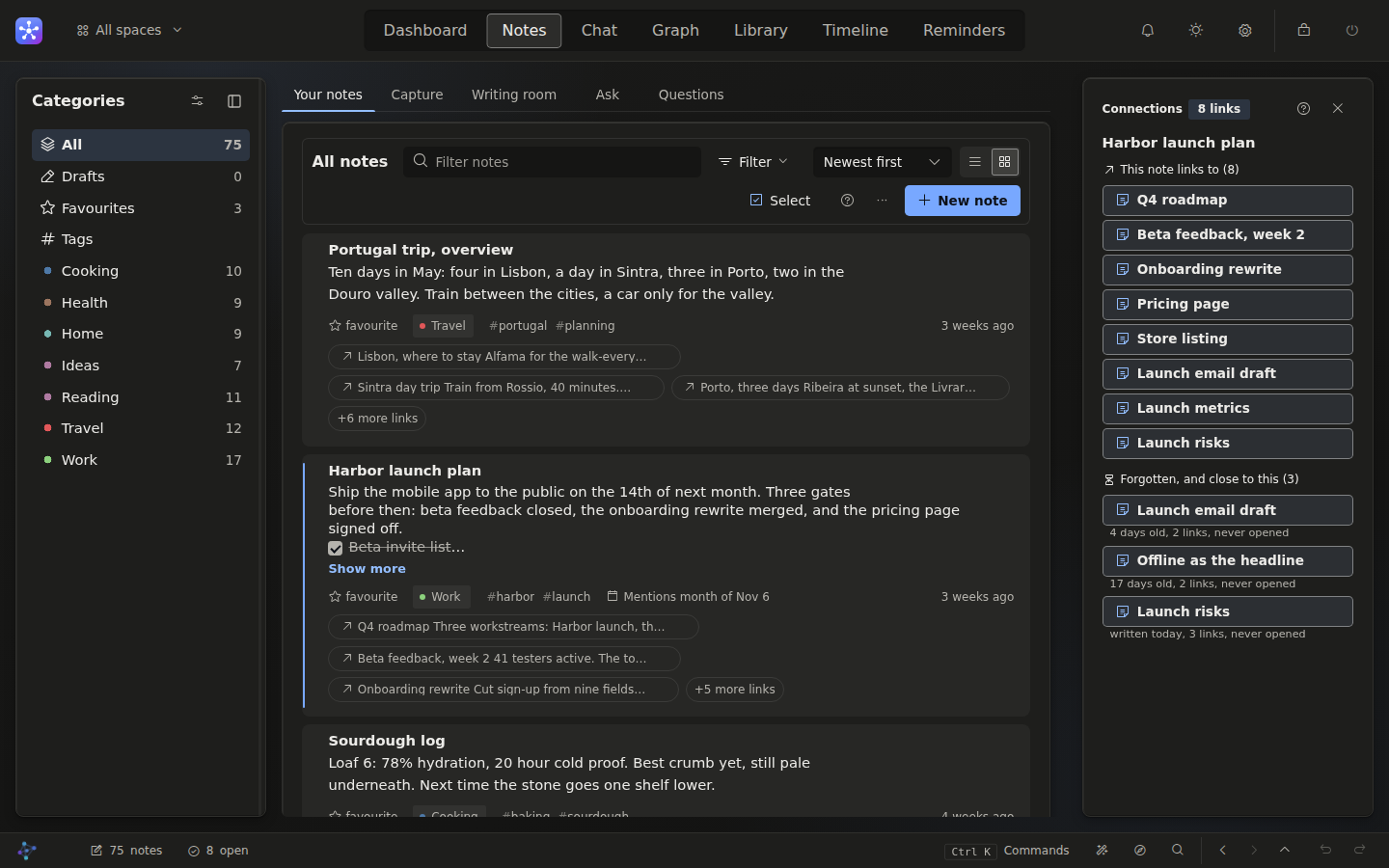
The Notes tab: categories down the left with their counts, and note cards newest first, each showing its category, tags and the notes it links to.

Chat and agent mode

A conversation that can do the work.

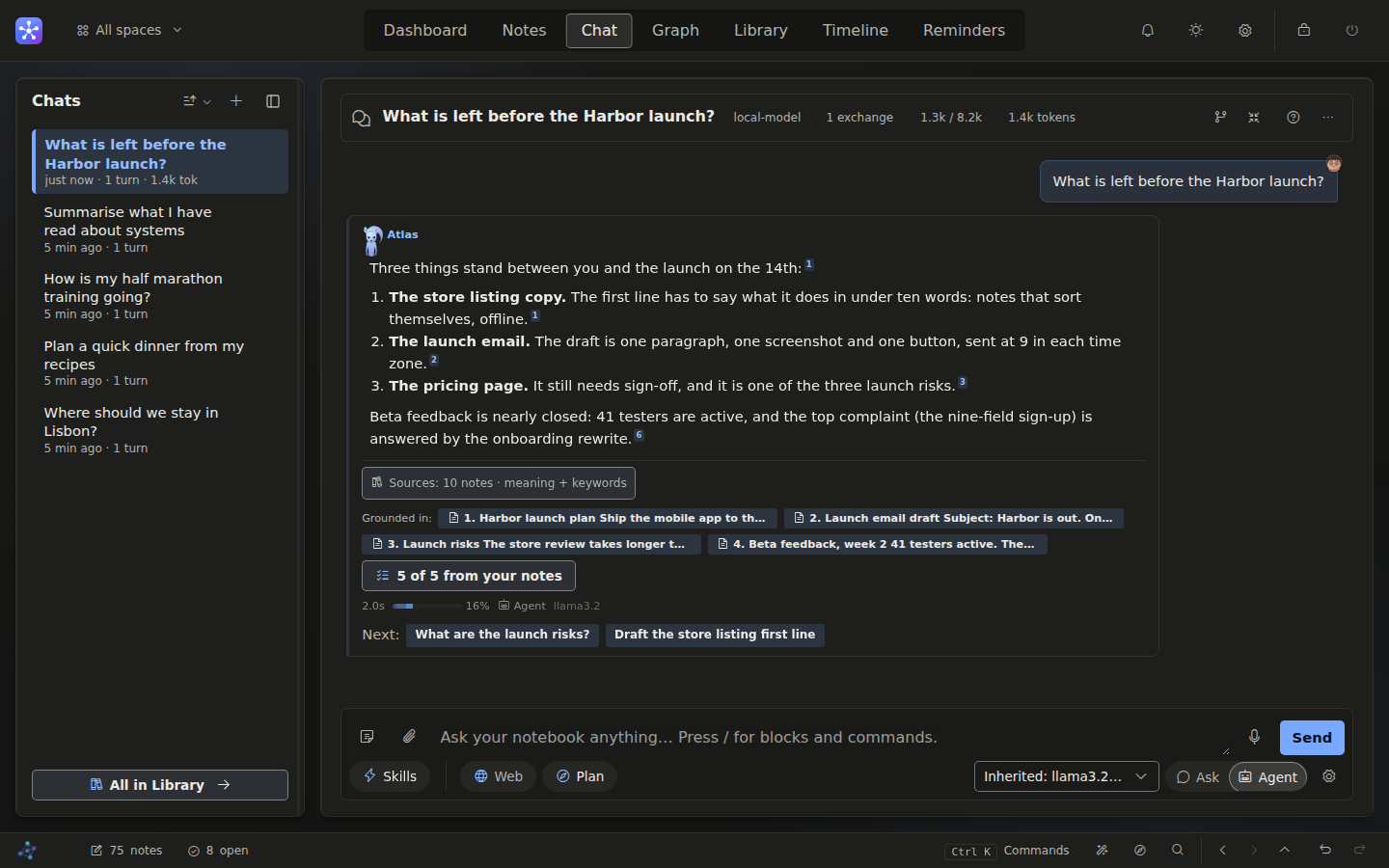
Chats are saved and resumable. Turn on agent mode and Atlas searches, links, organises and sets reminders, showing every step.

  • Anything destructive asks first
  • Skills run multi-step jobs as a visible checklist, and you can write your own
  • A small-model mode keeps small models on task, one step at a time
Chat: a saved conversation about a product launch, the answer as a numbered list with citations, the notes it was grounded in, suggested next questions, and the composer with skills, web search, plan and agent mode.

Graph

See how your thinking connects.

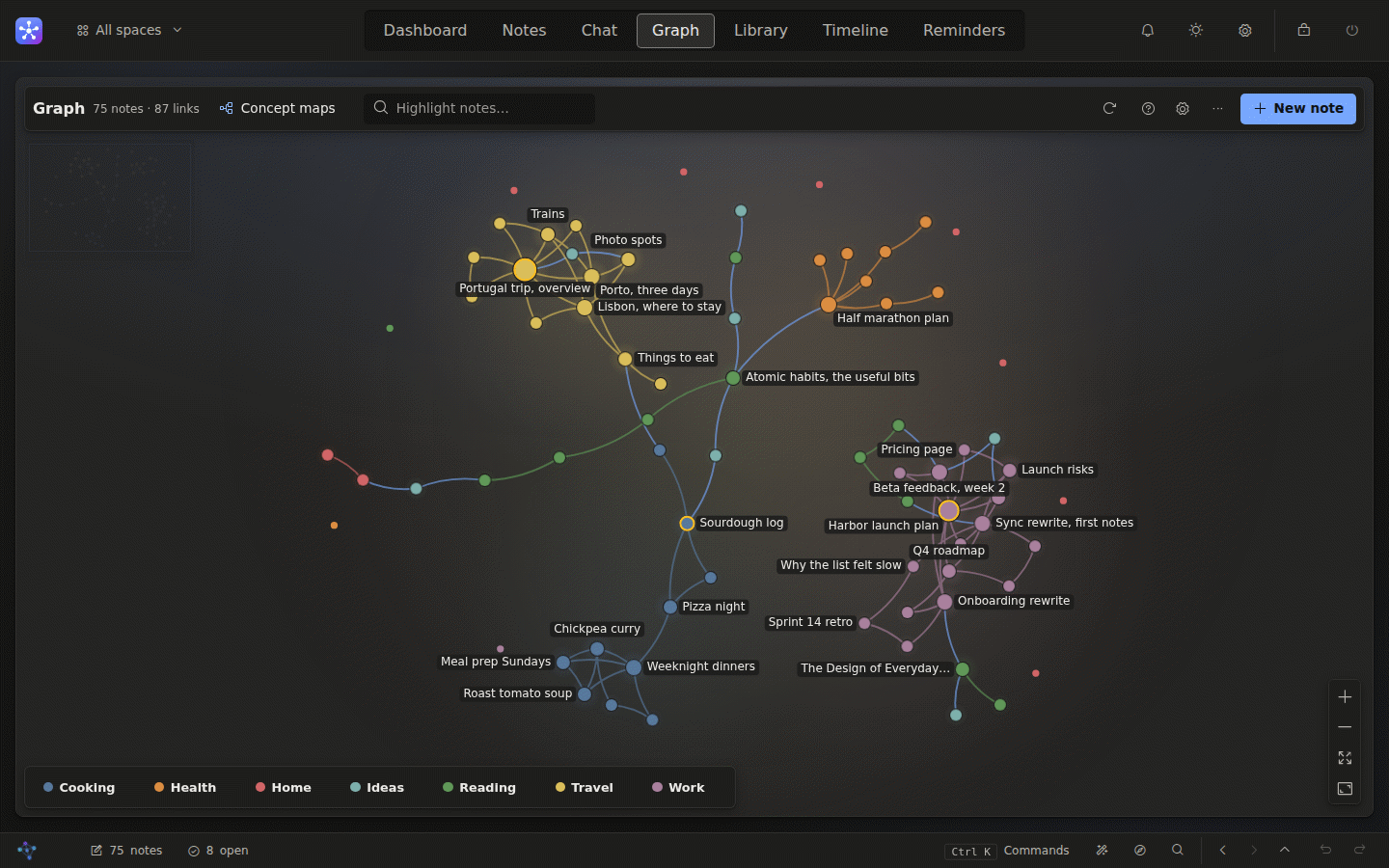
Your notes drawn as a map, coloured by category. Clusters, loose webs and stray notes show at once, and every link says why it exists.

  • Drop one note onto another to link them
  • Trace the chain of links between any two notes
  • Force, tree, radial and arc layouts
The Graph: notes drawn as a map coloured by category, with a dense cluster of work notes, a dense cluster of trip notes, a looser web of reading and recipes, and loose notes on their own.

Documents

Long-form writing, with checks that stay local.

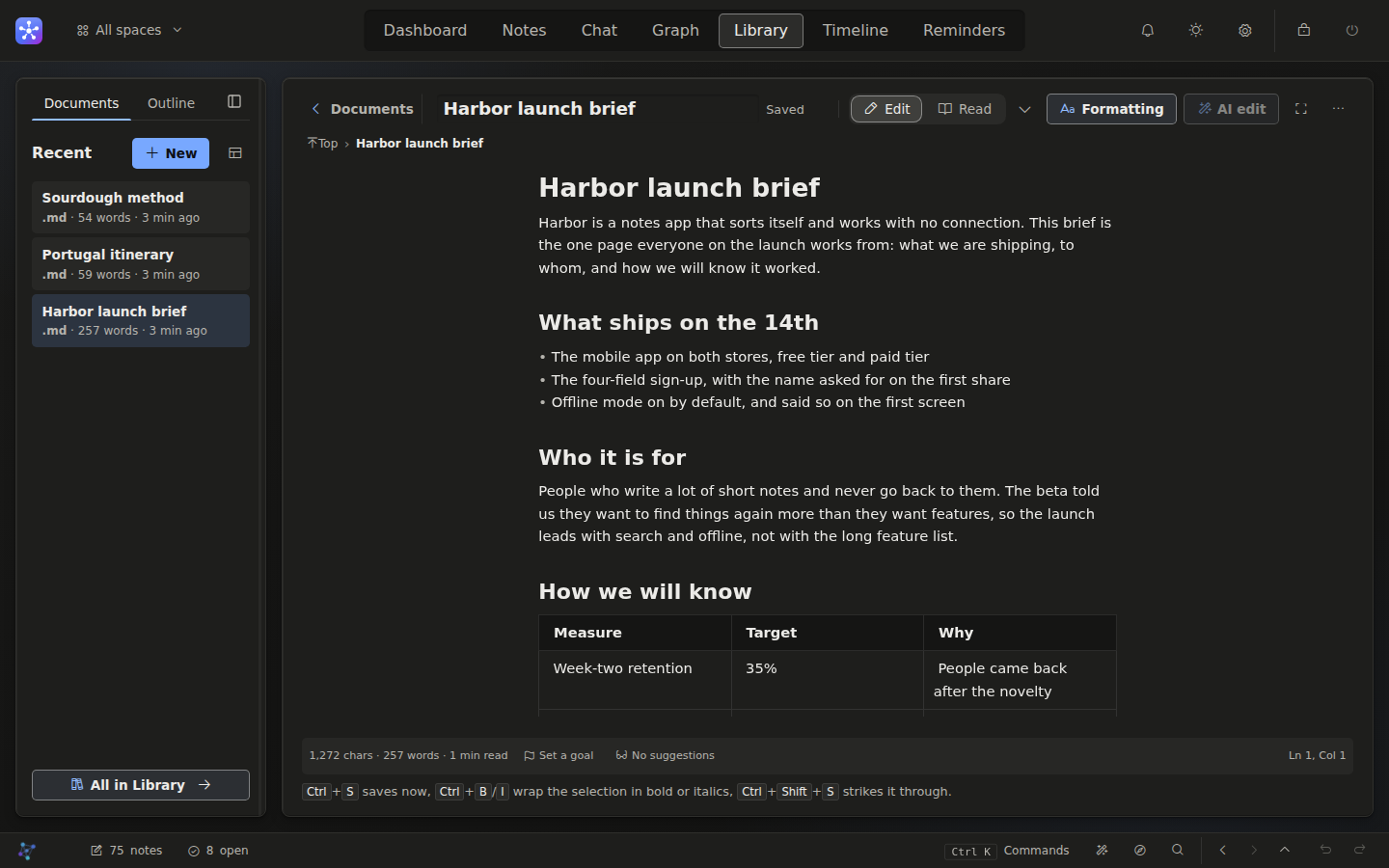
A real editor for what outgrows a note, with Live, Source, Split and Read views. Spelling and grammar are checked on your computer.

  • Version history, focus mode, and code files with line numbers
  • The Writing room turns rough thoughts into a proper note
  • Export as Markdown, HTML, PDF or Word
Documents: a launch brief open in the editor with headings, a bulleted list and a table, the recent documents beside it and the word count below.

Boards and mind maps

Think on a canvas.

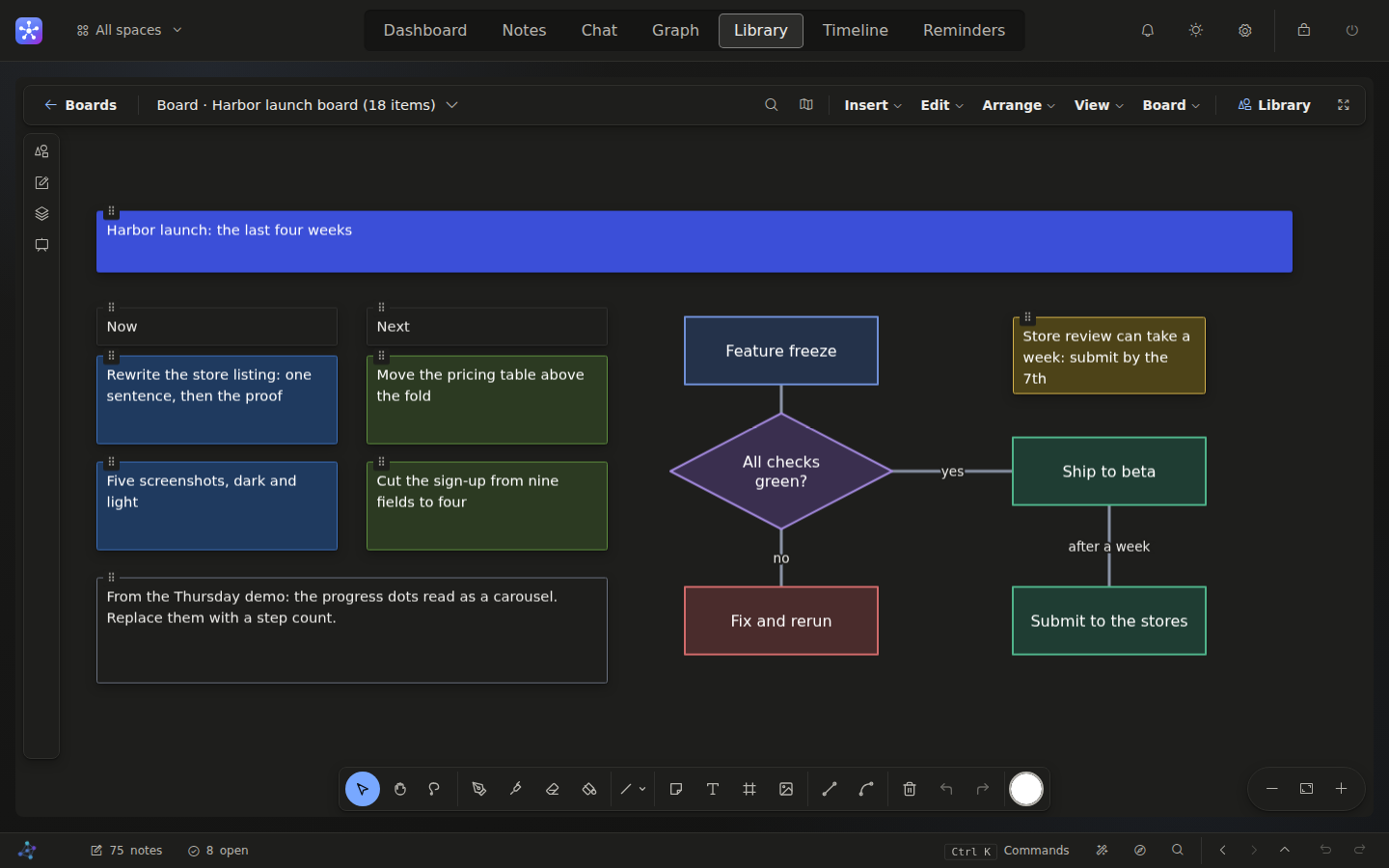
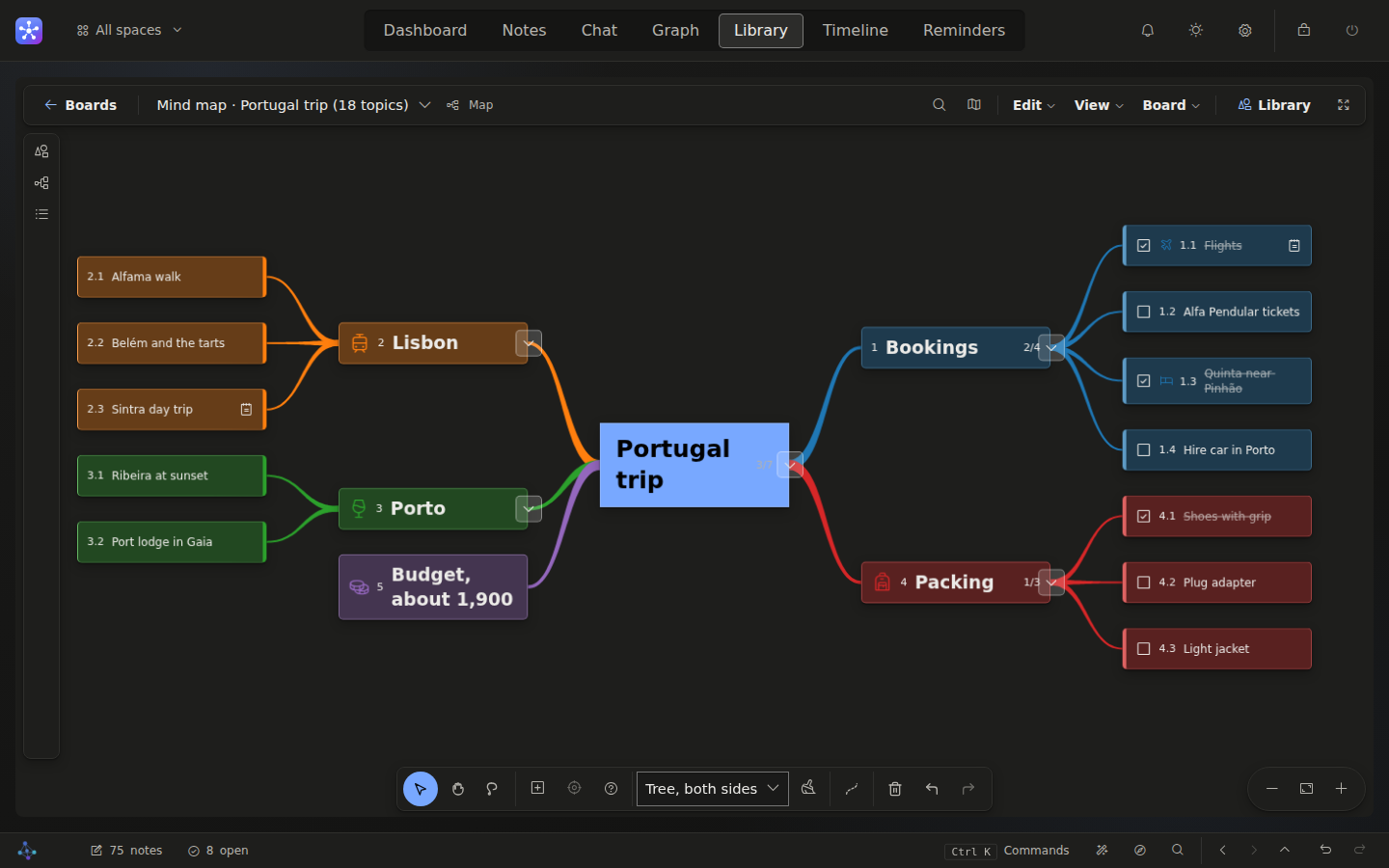
Cards, sketches, images and shapes that hold text, joined by labelled connectors. Turn a board into a mind map whose topics can be tasks or notes.

  • Shapes, flowchart symbols and icons
  • Mind maps export as Markdown, OPML or FreeMind, and import XMind
  • Every board is searchable like a note
A board
A mind map

And around it.

The smaller tools you reach for every day.

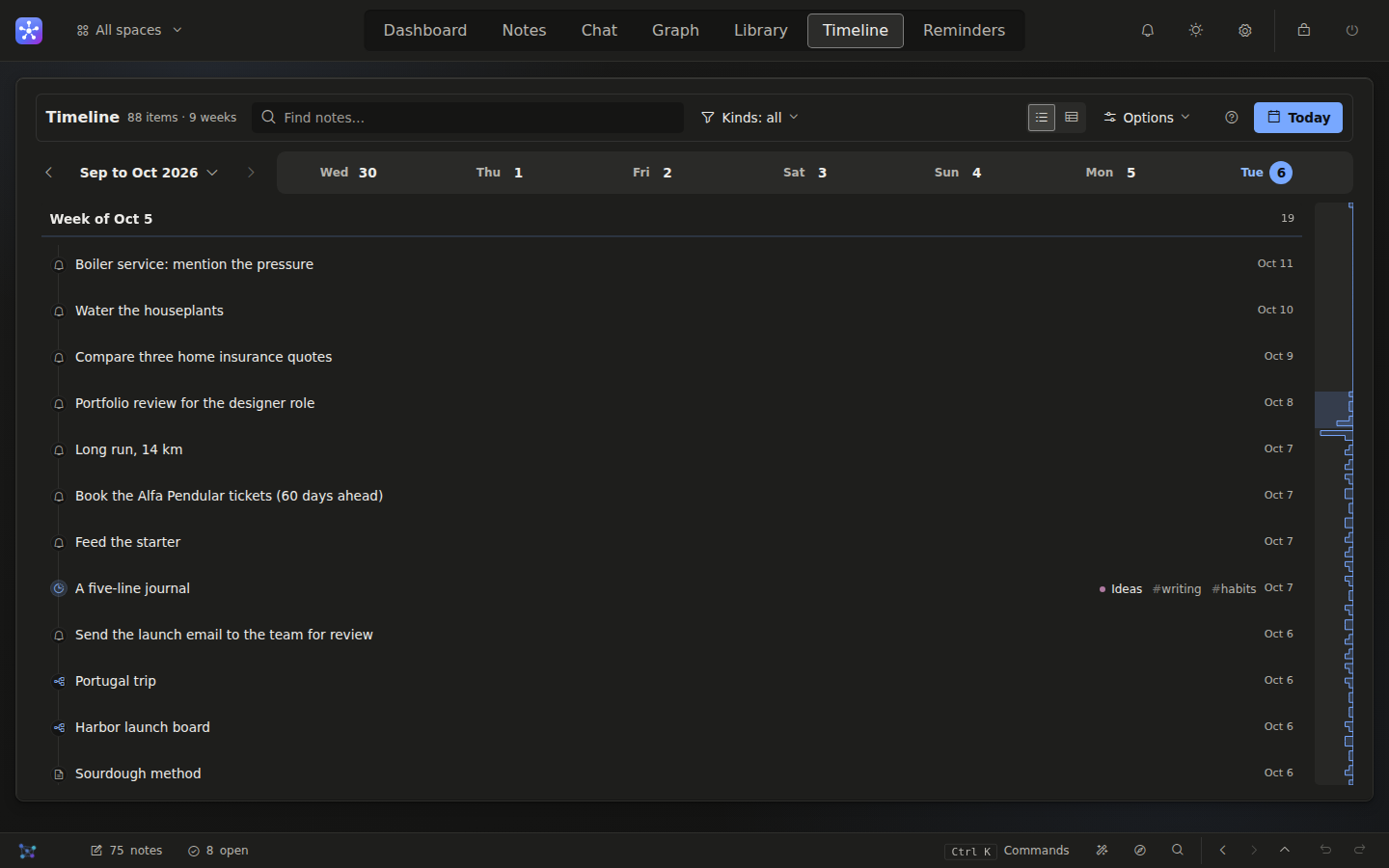
The Timeline: notes and reminders in a feed with a header per day, each row with its category, tags and time, and a density strip down the right.

Timeline

Every note and reminder on one axis, placed by the date a note talks about.

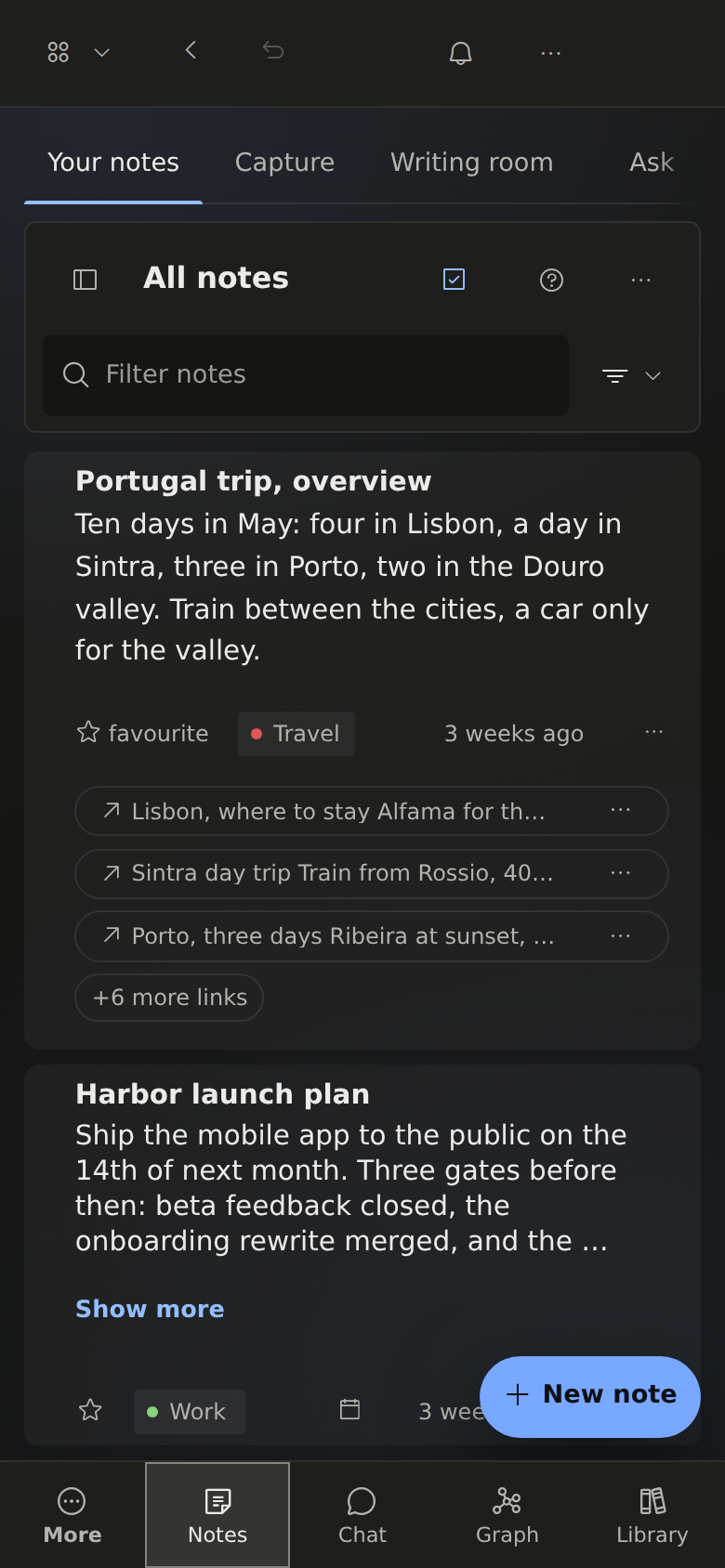
The Notes tab at phone width in the dark theme: one column of note cards, a New note button and the tab bar along the bottom.

On your phone

Allow your own network in Settings and a phone opens it, behind your password and over HTTPS.

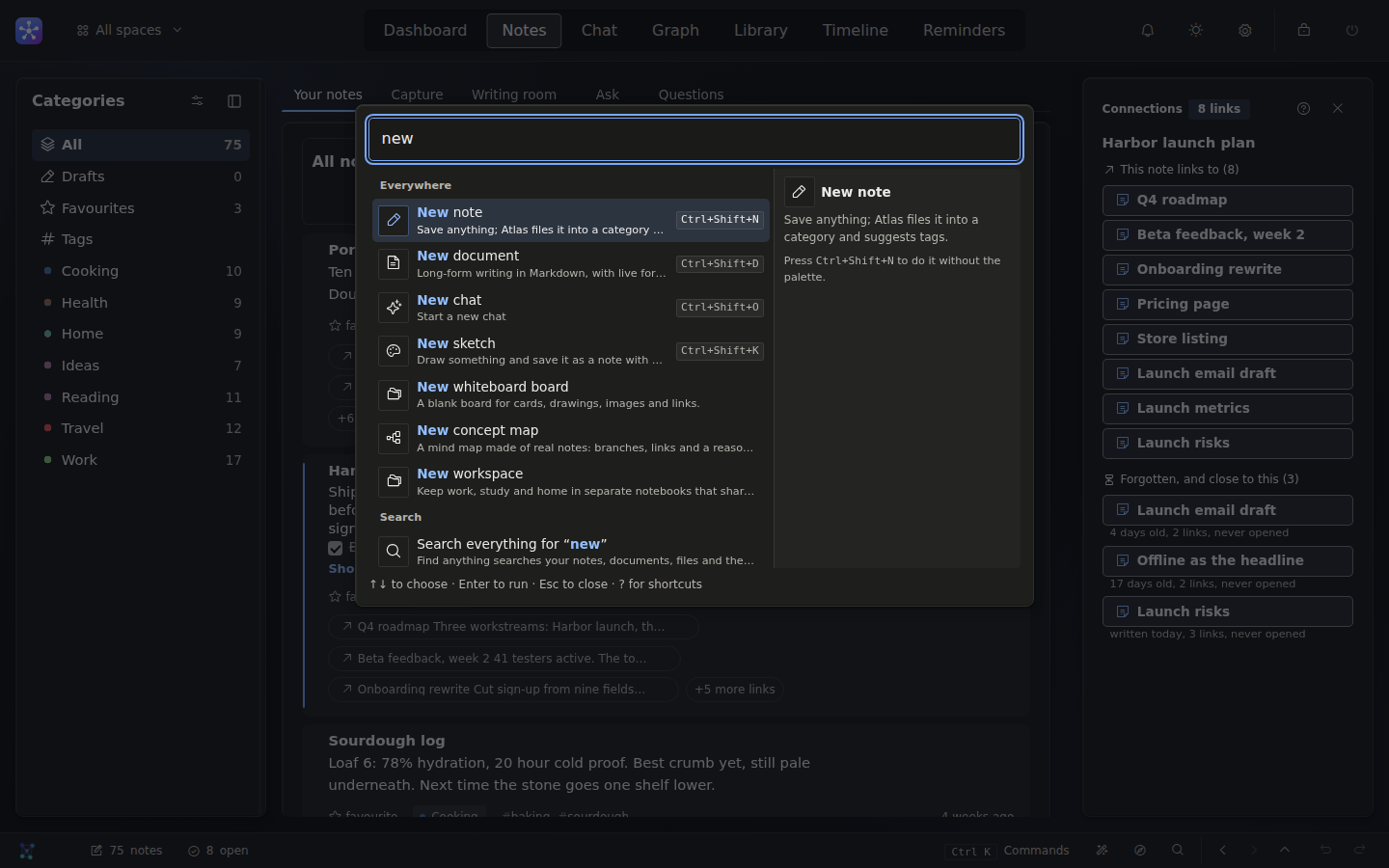
The command palette: the word new matching the create commands, a preview of the chosen one, and a last row that searches everything.

Command palette

Ctrl+K runs any command or goes to any place; Ctrl+P finds anything: notes, files and actions. Shortcuts show in every tooltip.

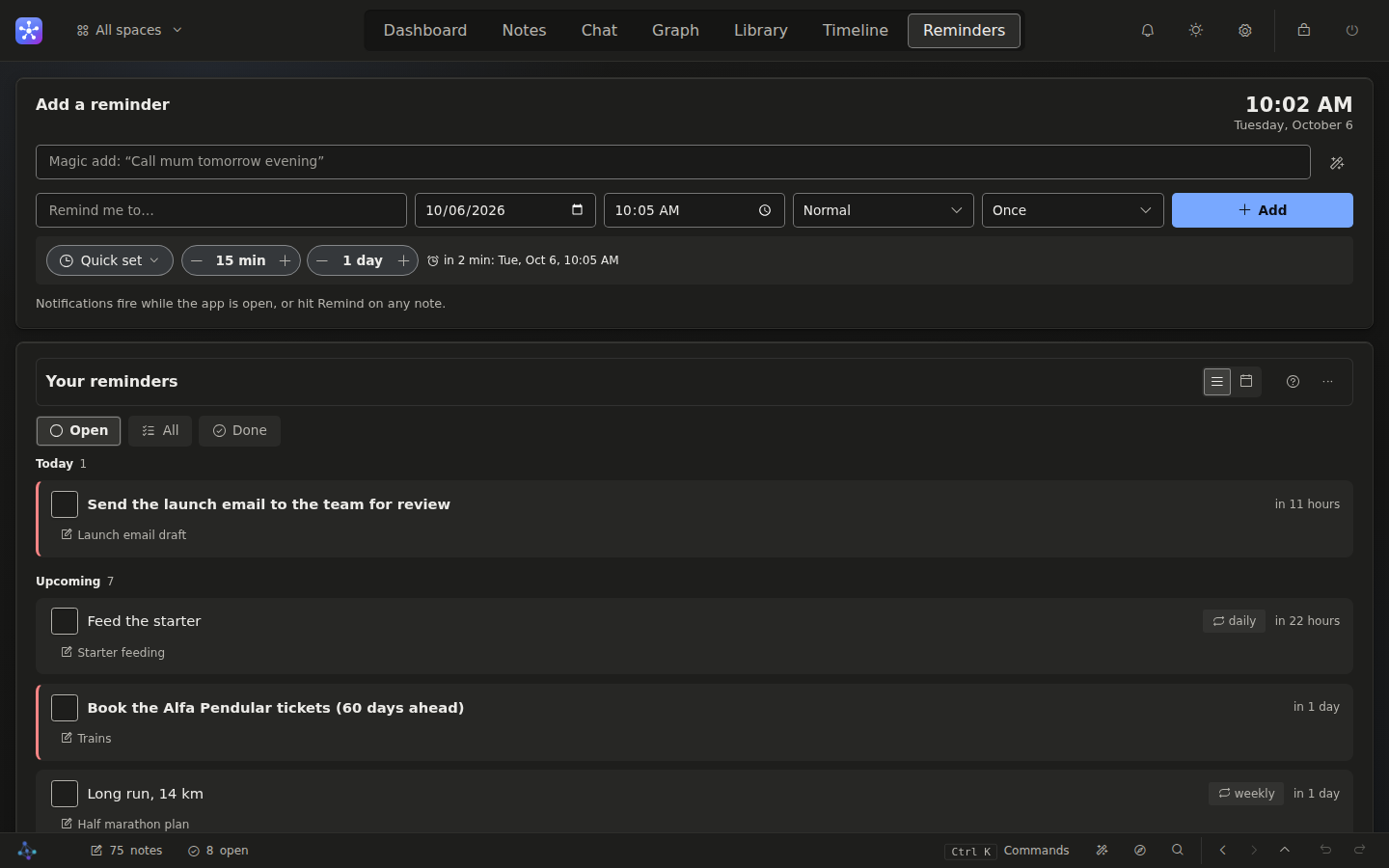
Reminders: a magic add box, a form with date, time, priority and repeat, and the list of open reminders, each linked to the note it came from.

Reminders

Type “call Sam tomorrow evening” and it is scheduled.

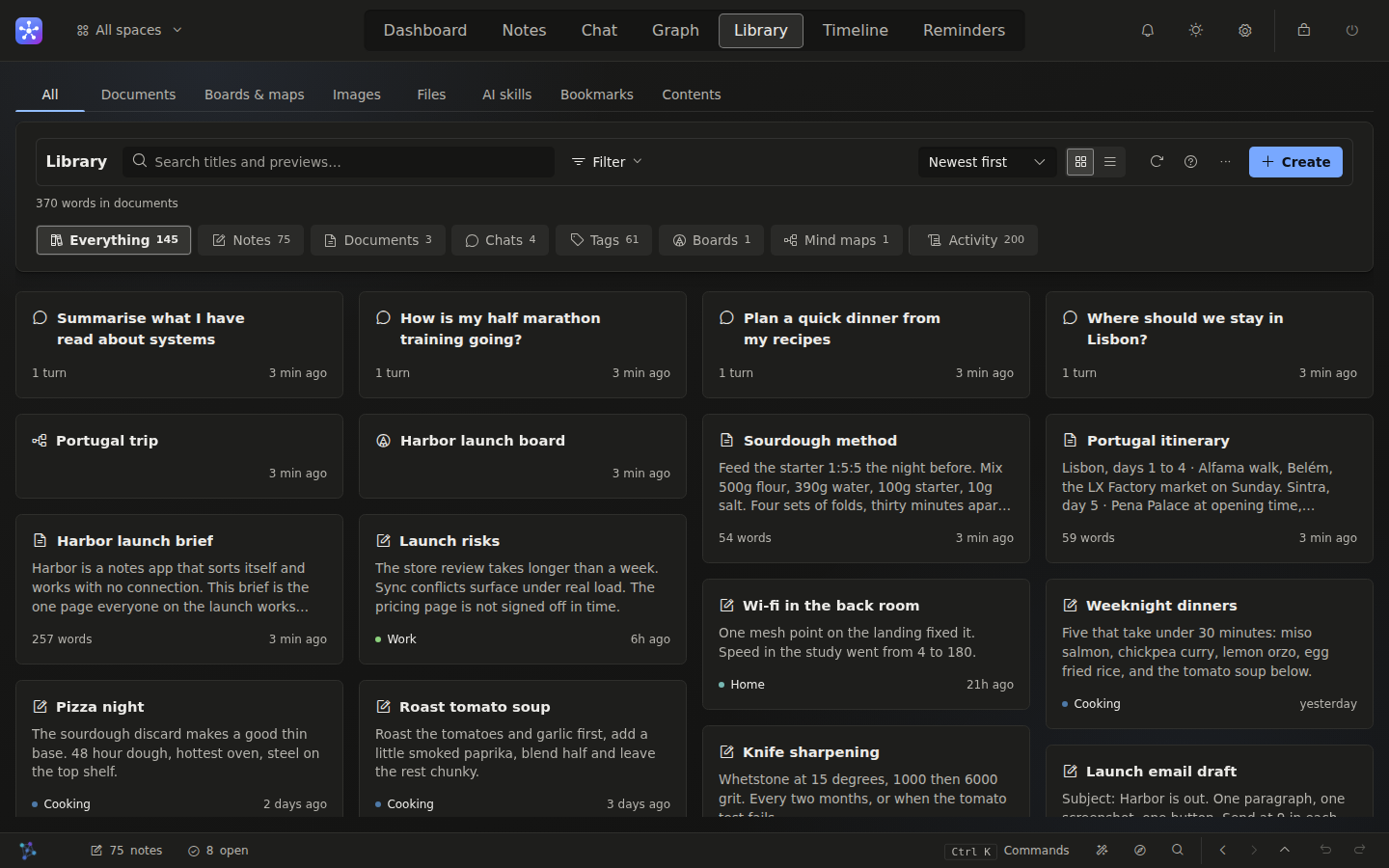
The Library: chats, boards, mind maps, documents and notes as cards in one grid, with a filter chip for each kind.

Library

Notes, documents, chats, boards, files and bookmarks in one place.

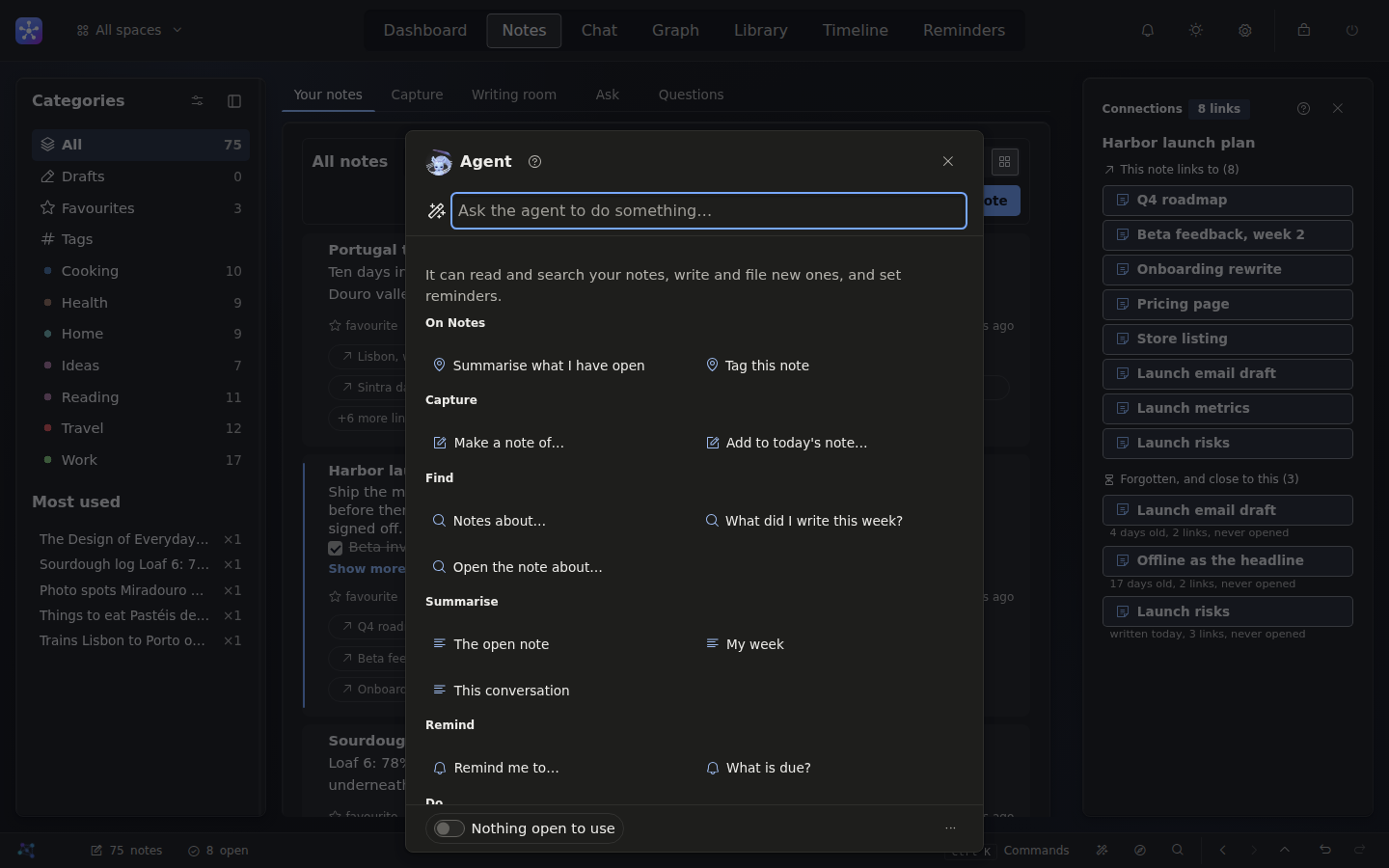
The popup agent over the Notes tab: Atlas beside the title, a box to ask it to do something, and starters grouped by capture, find, summarise and remind.

Popup agent

Ctrl+Shift+A asks Atlas to capture, find or remind without leaving the page.

Atlas, delighted: a small astral figure on a night-sky tile, eyes closed in a wide smile, a ring of orbiting stars round its head and a nebula stream curling round its body.

Atlas

The star spirit behind the filing and the answers. Keep it in the corner, or switch it off.

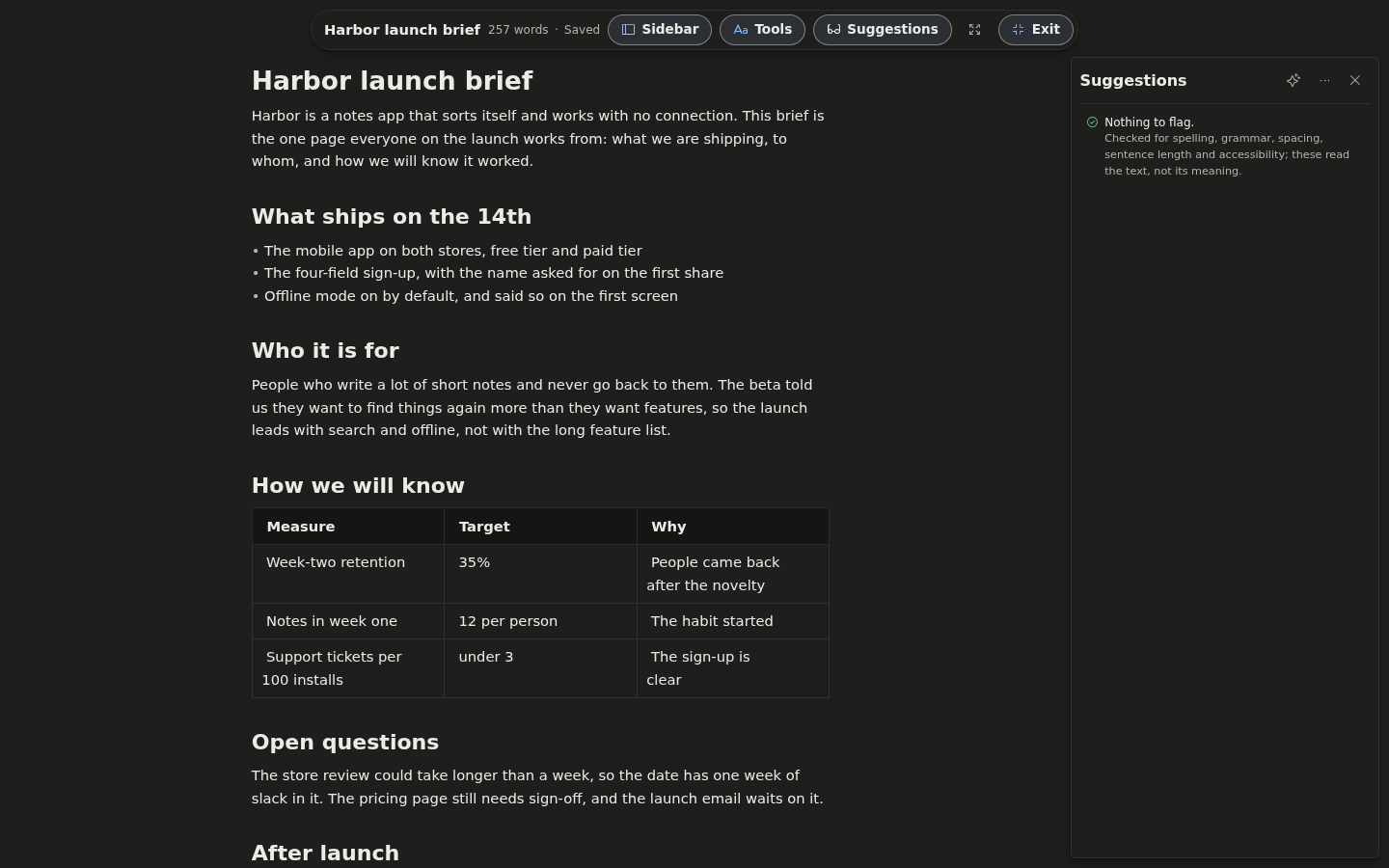
Documents in focus mode: the page alone under a slim bar, with the writing suggestions panel open beside it.

Focus mode

The page and nothing else, with writing checks when you want them.

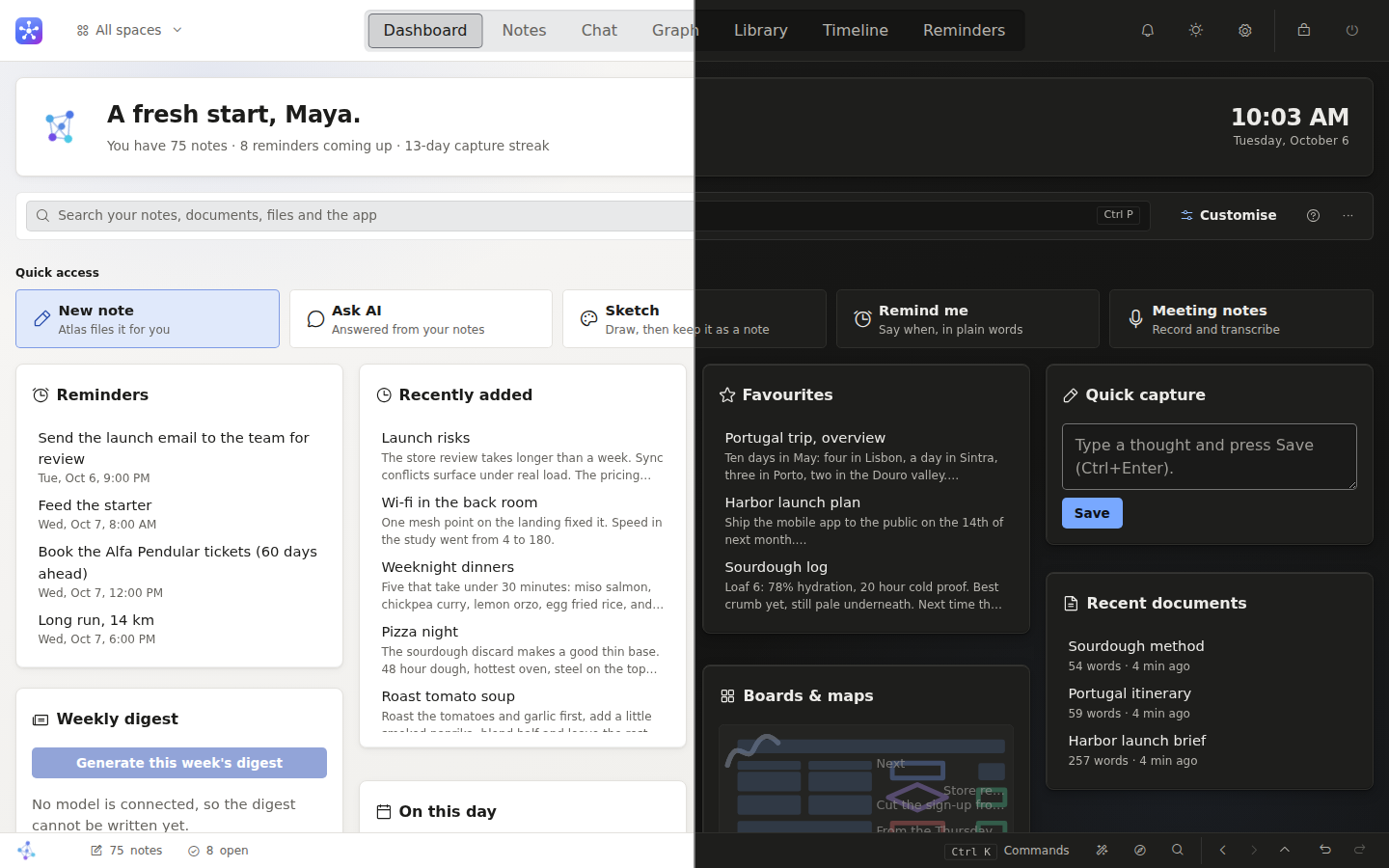
The dashboard split down the middle, the left half in the light theme and the right half in the dark theme.

Light or dark

Every theme in both, your own accent, type, density and corners.

  • ImportMarkdown, PDF, Word and slide decks, plus Notion, Obsidian, Evernote and Apple Notes.
  • Read imagesA vision model or local OCR, with each region checked before it becomes a note.
  • Voice and meetingsRecordings transcribed on your machine.
  • Web clipperA bookmarklet that saves a page as a note.
  • Background librarianTags, links and flags duplicates on your schedule. It never deletes.
  • ExportJSON, CSV or Markdown, or a full backup sealed with a password.

Nothing leaves your computer unless you send it.

There is no service behind MemoryMap. The app, the AI and your notes all run on your machine. Here is everything that could reach the network, and where it stands.

Account
noneThe password you choose protects the app on this computer and goes nowhere.
Telemetry
noneNo analytics, no usage reports, no crash reporting service.
Your notes
localOne SQLite file beside your uploads and a daily backup, in a folder you choose. Copy the folder and you have everything.
The AI model
localRuns on your computer or your own network. An address that is not local is refused unless you allow it.
Web search
offUntil you turn it on, and then it sends only your search words.
Update check
offUntil you turn it on. Settings, Privacy lists every connection the app has made.
Private notes
encryptedEncrypted at rest with a key from your password, and kept out of search, the graph and every AI tool.
No model at all
worksNotes are filed as Uncategorised, search uses full-text matching with spelling correction, and everything else keeps working.

Install in a few minutes.

Only running from source needs a terminal, and the launcher does the setup for you.

Windows

  1. Download MemoryMap-AI-Setup-*.exe from the latest release.
  2. Run it. The app opens in its own window.

The installer is not code-signed yet, so Windows may show a “protected your PC” screen. The guide shows what to click.

Windows installer guide

Linux

  1. Download MemoryMap-AI-*-linux-x86_64.tar.gz from the same page.
  2. Unpack it and run MemoryMap AI.
tar -xzf MemoryMap-AI-*-linux-x86_64.tar.gz

The window needs GTK and WebKit, which most desktops already have.

Linux package guide

macOS, or from source

  1. Clone the repository and run the start script.
  2. It builds a private Python environment and opens the app.
git clone https://github.com/Braydenh563/MemoryMap-AI.git
cd MemoryMap-AI
./start-desktop.sh

Use ./start.sh for a browser tab, or add --doctor to check the machine and print a fix for each problem.

Step-by-step install guide

Then add a model, or don’t.

The notebook works without one. Filing and answers switch on when you add a model, and you can change it any time in Settings, Models.

Updating and uninstalling are in the install guide, common problems in troubleshooting.

Ollama

The simplest route. Pull a model that suits your machine and choose it in Settings. Small models run on an ordinary laptop with no GPU.

llama.cpp, LM Studio, Jan, vLLM

Anything that serves the OpenAI API. Enter its address in Settings, Models and press Connect; no restart.

Questions people ask.

Something else? Open an issue on GitHub.

Is it free?

Yes. MemoryMap AI is free and open source under the GNU Affero General Public License. You may use, study, change and share it, and anything built on it stays under the same licence.

Do I need a powerful computer or a GPU?

No. The app is light, and small models run on an ordinary laptop with no GPU. A bigger model gives better answers if your machine can hold one; the model guide suggests one for each size of machine.

Does it work without any AI?

Yes. With no model, notes are filed as Uncategorised, tags are suggested from similar notes, search uses full-text matching with stemming and spelling correction, and documents, boards, mind maps, the graph, the timeline and reminders all keep working.

Where are my notes stored?

In one folder on your computer: a single SQLite file for your notes, your uploads, your preferences and a daily backup. Move the folder anywhere, and export everything as JSON, CSV or Markdown, or as a password-sealed backup.

Does anything go online?

Only what you switch on. Web search and the update check are off by default, a model address that is not local is refused unless you allow it, and Settings, Privacy lists every connection the app has made. There is no telemetry.

Can I use it on my phone?

Yes, from your own network. The server listens on your computer only until you switch on network access in Settings, Account & security. A phone then opens it in its browser, behind your password and over HTTPS.

Can I bring my notes from another app?

Yes. It imports folders of Markdown, PDF, Word and slide decks, and exports from Notion, Obsidian, Evernote and Apple Notes. Importing the same thing twice adds only what is new.

Why does Windows warn me about the installer?

The installer is not code-signed yet, so Windows SmartScreen shows a “protected your PC” screen the first time. The install guide shows exactly what to click, and the source for every build is on GitHub.

How do I report a bug or a security problem?

Open an issue on GitHub for bugs and ideas. For a vulnerability, follow the security policy rather than opening a public issue.

Your notes, on your machine, filed for you.

Free for Windows and Linux, and runs from source on macOS. No account to make, nothing to send.